
Aungsha Editorial
How to Create an Account on Aungsha: A Complete Step-by-Step Guide for Beginners
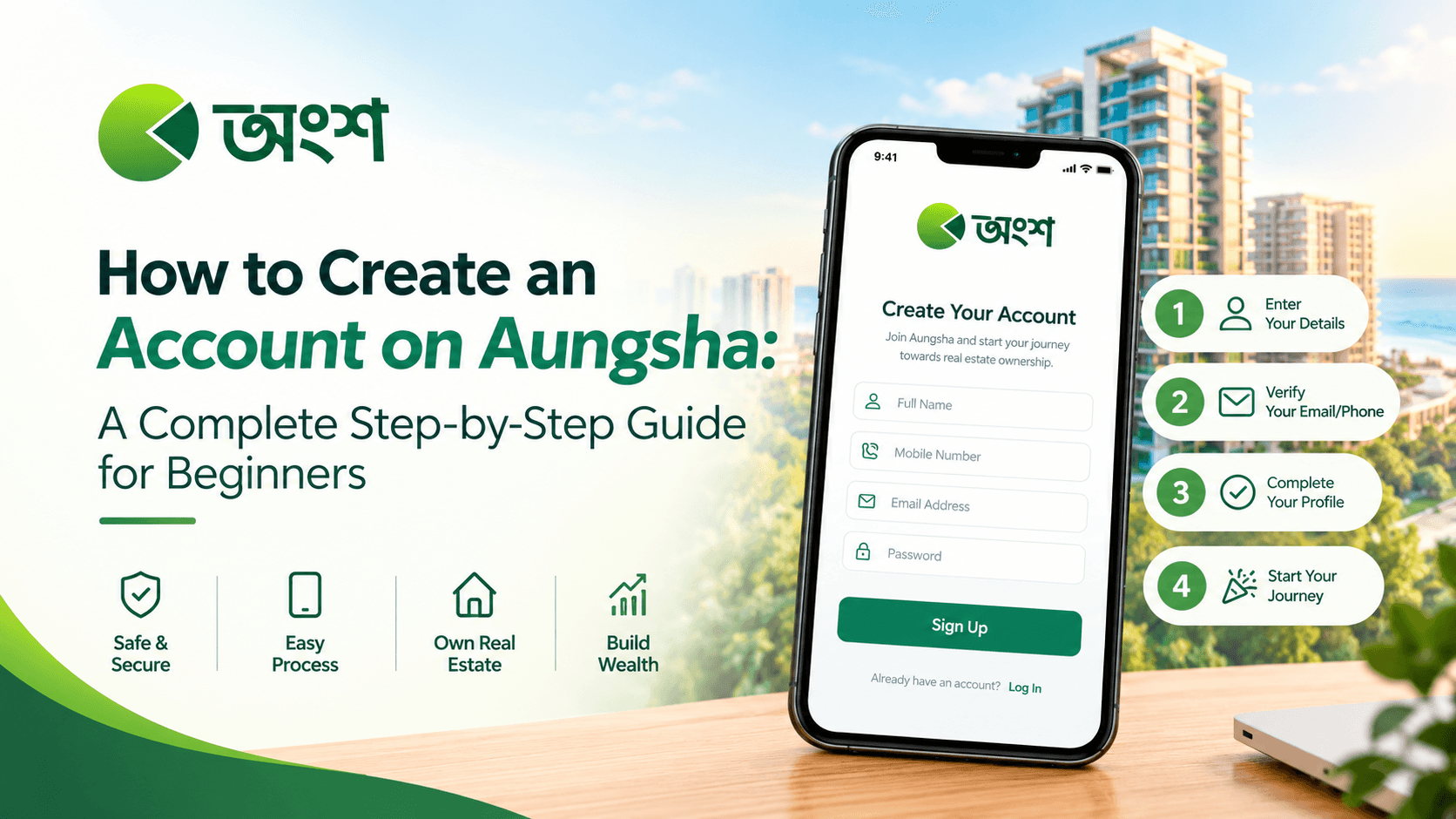
In this guide, I'll walk you through how to create an Aungsha account using your email address, step by step.
A few weeks ago, I wrote about Aungsha, Bangladesh's first digital real estate platform, and the idea of becoming a real estate partner with a small amount of money. The response surprised me. Several friends and readers messaged me with the same question: "This sounds interesting, but how do I actually get started?"
That's a fair question. A good idea means little if the first step feels confusing. So today I decided to sit down with the Aungsha app and go through the sign-up process myself, one screen at a time. In this guide, I'll walk you through how to create an Aungsha account using your email address, step by step.
If you can sign up for Facebook or download any app on your phone, you can do this. Let's begin.
A Quick Recap: What Is Aungsha?
Aungsha is a concern of Biswas Builders Limited. It's a digital platform where large real estate projects are divided into small units, so people can become partners in a project according to their budget. Its stated goal is to make real estate buying and selling easier, more transparent, and more affordable.
Before you can explore any project on the platform, you need an account. That's what we'll set up today.
Before You Start: What You'll Need
Getting these ready first will save you time:
A smartphone with the Aungsha app installed. The app is already available on the Google Play Store, and an Apple App Store version is expected soon.
A working email address that you can open right now, since a verification code will be sent there.
Your full name, entered the way you want it to appear on your account.
A password you'll remember. A strong one is a good idea, since this account may eventually be linked to your investments.
A stable internet connection, so the verification code arrives without delay.
Step 1: Open the Aungsha App
First, open the Aungsha app on your phone. If you haven't installed it yet, search for "Aungsha" on the Google Play Store, install it, and then open it. You can also find more information at www.aungsha.com.
When the app opens, you'll land on the first page. This is where the sign-up journey begins.
(Screenshot suggestion: the app's first page)
Step 2: Choose Your Sign-Up Method
On the first page, you'll see options to sign up with either a phone number or an email address.
Both options are there, so you can pick whichever suits you. In this guide, I'm going with email. It's straightforward, and most of us already keep an email address handy.
(Screenshot suggestion: the sign-up options screen)
Step 3: Enter Your Full Name, Email Address, and Password
Now you'll be asked for three pieces of information:
Full Name: Type your name clearly. It's best to use your real, complete name rather than a nickname.
Email Address: Enter your email carefully. A single typo means the verification code will go to the wrong place, and you'll be stuck.
Password: Choose a password and type it in.
A small tip from personal experience: before moving on, double-check your email spelling. Most sign-up problems I've seen come from a tiny typo like "gmial" instead of "gmail."
(Screenshot suggestion: the sign-up form with the three fields)
Step 4: Tick the "I Agree…" Box
Below the form, you'll see an "I Agree…" checkbox. This is your confirmation that you agree to the platform's terms.
Tap the box to tick it. I'd encourage you to actually read what you're agreeing to. When you're dealing with anything related to money or property, understanding the terms isn't a formality, it's a habit worth building.
Once it's ticked, tap the "Create Account" button.
Step 5: Check Your Email for the Verification Code
As soon as you tap Create Account, the app sends a verification code to your email address.
Open your email app or inbox and look for the message from Aungsha. Copy the code, or keep it in mind, and go back to the app.
If you don't see the email right away, give it a minute and refresh your inbox. It's also worth checking your spam or junk folder, since automated emails sometimes end up there.
(Screenshot suggestion: the verification code screen)
Step 6: Enter the Code and Tap "Verify & Continue"
Back in the app, you'll see a field to enter the code. Type in the verification code exactly as it appears in your email, then tap "Verify & Continue."
This step confirms that the email address really belongs to you. It's a common security measure and helps keep your account safe.
Step 7: Your Account Is Ready!
And that's it. Once the code is verified, your Aungsha account is created.
The whole process takes just a few minutes: open the app, enter your details, tick the box, verify the code, and you're in.
Quick Summary: The Steps at a Glance
Open the Aungsha app.
Choose to sign up with email (a phone number option is also available).
Enter your full name, email address, and password.
Tick the "I Agree…" box and tap Create Account.
Check your email for the verification code.
Enter the code and tap Verify & Continue.
Your account is created.
Common Problems and Simple Fixes
Even simple processes can hit a snag. Here are a few common ones and what you can try:
I didn't receive the verification code. Check your spam or junk folder, confirm you typed your email correctly, and make sure your internet connection is working.
The code isn't working. Re-enter it carefully and check for mistakes. If the problem continues, go back and request a new code or restart the sign-up.
I made a typo in my email. Go back and correct it before creating the account, since the code goes to the address you entered.
I forgot my password. Look for a password recovery option on the login screen.
If none of these work, try contacting Aungsha through the details on www.aungsha.com.
A Few Safety Tips Before You Go Further
Creating an account is only the first step. Before you put any money into any platform, including this one, I'd suggest a few habits:
Use a strong, unique password and don't share it or the verification code with anyone.
Only download the app from official stores like the Google Play Store, and avoid links from unknown sources.
Read the terms and conditions carefully, especially around fees, profit distribution, and selling or transferring units.
Start small if you decide to invest, so you can understand how the platform works in practice.
Do your own research. Any return figure is a claim to verify, not a guarantee.
Frequently Asked Questions
Can I sign up with a phone number instead of an email?
Yes, the app's first page offers both phone number and email sign-up. This guide covers the email method.
Is creating an account free?
This guide only covers the sign-up steps shown in the app. For any fees or charges, please check the terms inside the app or on the official website.
Is the Aungsha app available on iPhone?
The app is already on the Google Play Store, and the Apple App Store version is expected soon.
How long does account creation take?
In my experience, just a few minutes, provided you can receive the verification email quickly.
Final Thoughts
When I first heard about Aungsha, my biggest hesitation was whether it would be complicated to use. After walking through the sign-up myself, I can say the account creation part is refreshingly simple: a few details, one checkbox, one verification code, and you're done.
Of course, creating an account is only the beginning. The real work is understanding the projects, the terms, and the risks before you commit any money. Take your time, explore the app, and make decisions at your own pace.
Have you already created your Aungsha account? Did you run into any problems along the way? Let me know in the comments below, and I'll do my best to help.